01) How to view your device's details.
CPU-Z

This app normally displays every detail of your device such as CPU,Clock speed , RAM capacity, Storage , root compatibility capacity and many more....
01) Just use the link given below and feel free to download the app.
02) Now install and enjoy the app.
02) Now install and enjoy the app.
02) How to download a Youtube video on Android.

Dentex Youtube Video Downloader for Android
It is possible to download Youtube videos on android device. Simply you have to download and install an apk file or an app.Just follow the steps I have shown below.
01) Download the apk file using the link below and install it.

Now the app wil be installed on to your device.
02) Open the Youtube app or go to Youtube website from your browser.
03) Pick up your targeted video and open it.
04) Now select the Share option.
Then you will see the apps you can share the video

05) Select Youtube video downloader
Now the app will be open and display differernt types of video qualities and formats.
06) Select the quality and format

Now you will get a pop up named "Confirm Download for"

07) Now select "Download here"
And now your video wiil be downloaded into the default download folder.
Enjoy this app..!!

03) How to protect your Android device from Thieves.( Locate my android phone )
XtraSec Mobile Security
With this app on your Android device you don't need to bother of your device's security anymore.
Features:
✔ Find My Phone(with auto turn on GPS)
✔ Phone alert (make your phone scream!)
✔ Remotely SPY capture photo (NEW!)
✔ SPY Auto capture on invalid lockscreen password entered
✔ Detect SIM replacement
✔ Remotely turn on WiFi or 3G data using SMS
✔ Remotely check battery info
✔ Remotely check telephony info
✔ Remotely phone lock with PIN
✔ Remotely phone and SD data wipe
✔ Wipe proof (XtraSEC survive on factory restore)
✔ Find My Phone(with auto turn on GPS)
✔ Phone alert (make your phone scream!)
✔ Remotely SPY capture photo (NEW!)
✔ SPY Auto capture on invalid lockscreen password entered
✔ Detect SIM replacement
✔ Remotely turn on WiFi or 3G data using SMS
✔ Remotely check battery info
✔ Remotely check telephony info
✔ Remotely phone lock with PIN
✔ Remotely phone and SD data wipe
✔ Wipe proof (XtraSEC survive on factory restore)
01) Click this link and feel free to download your app from the google play..
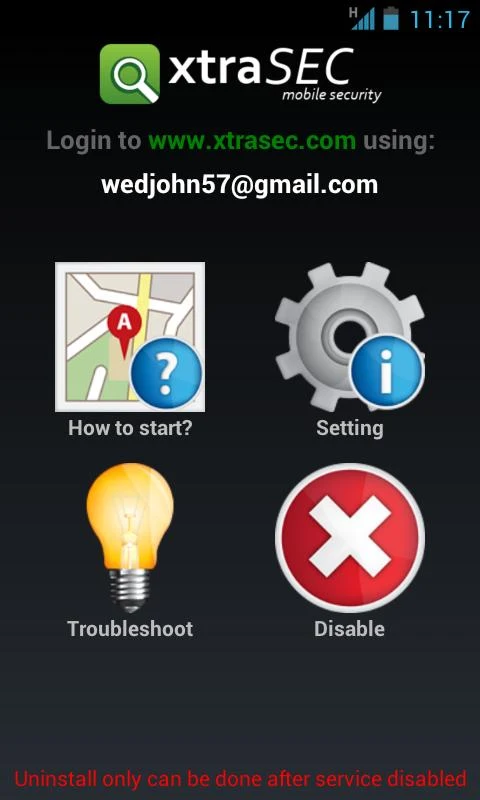
02) Install your app and follow the steps and set up the app.You will need an internet connection turned on when doing these steps.They will ask a PIN number,Phone numbers to send SMS s and ask you to grant gmail permission,select allow.
You will be displayed the following interface.
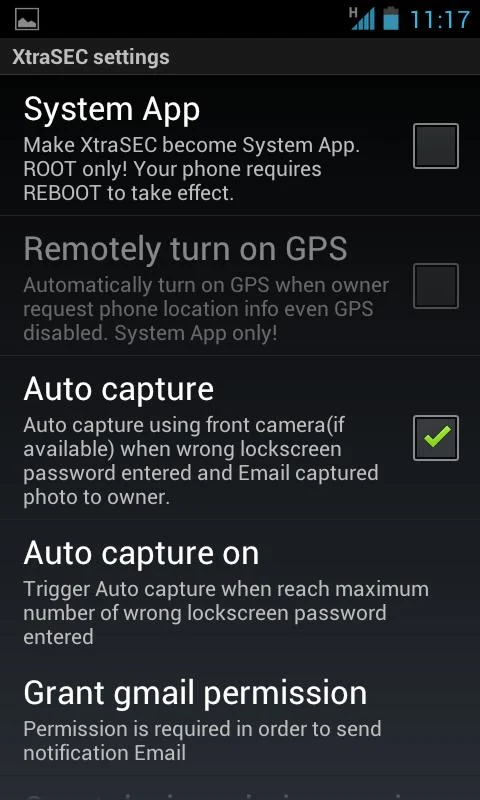
03) Make the app as a device administrator.To make the app as an device administrator follow the following steps.
i) Go to settings in the app
ii) Scroll little bit down and select "Grant Admin permission"
iii) A pop up window will appear.Select "I Understand"
iv) Then select "Activate"
Now the app has Admin permission.So no one can unistall the app.
Note: If you have trouble uninstalling, go to Settings -> Location & Security -> Select Device Administrators and uncheck XtraSEC.
Using SMS commands you can controll your devices's functions.Send the xtrasec SMS codes from another mobile to your device.Follow you have the SMS commands and theri functions.
- Find My Phone
To retrieve phone location: xtrasec locate [pin] - Phone Alert (Make Your Phone Scream!)
To make phone scream: xtrasec alert [pin] - Remotely capture photo
To capture normal photo using front camera: xtrasec camfront [pin]
To capture normal photo using back camera: xtrasec camback [pin]
To capture high res photo using front camera: xtrasec camfronthigh [pin]
To capture high res photo using back camera: xtrasec cambackhigh [pin] - Remotely turn on/off Mobile data(3G)
To turn on mobile data(3G): xtrasec dataon [pin]
To turn off mobile data(3G): xtrasec dataoff [pin] - Remotely turn on/off WiFi
To turn on WiFi: xtrasec wifion [pin]
To turn off WiFi: xtrasec wifioff [pin] - Remotely check battery info
To retrieve phone battery info: xtrasec battery [pin] - Remotely check telephony info
To retrieve telephony info: xtrasec telephony [pin]
Here the "pin" means the security code you use to access the app.
With this app on your Android,not any thief or robber can steal your device.

01) Now Copy the the zip file from your download folder to the sdcard of your device.Do not copy it inside any folder.Just copy it directly to the sdcard.
02) Shut down the android device and reboot it to the recovery mode.
Booting up to the recovery mode may be different in many devices.
For Samsung Galaxy Note 3,Galaxy S4 - push Volume up + Home button + Power button simultaneously.
If you are using a Sony device you have to unlock Bootloader First.
If your device has no recovery software installed you will have to manually install a CWM recovery or TWRP recovey software.

The user interface will look like the above.
Use volume up and down buttons to select or swipe the touch screen up and down.
03)Now choose "install zip"

03) Then choose "install zip from sdcard"
04)Now select the zip "SuperSU-0.93-Busybox installer.zip"
05) The you will have to confirm the install.
06) After that the zip will be automatically extracted and excicuted.
07) Now just go back and to reboot select "reboot system now".
08) When device is starting it will display "Android is Upgrading"
Click the link below to download SuperSU installer.zip
01) Now Copy the the zip file from your download folder to the sdcard of your device.Do not copy it inside any folder.Just copy it directly to the sdcard.
02) Shut down the android device and reboot it to the recovery mode.
If your device has no recovery software installed you will have to manually install a CWM recovery or TWRP recovey software.
03)Now choose "install zip"
03) Then choose "install zip from sdcard"
04)Now select the zip "UPDATE-SuperSU-v2.01.zip"
05) The you will have to confirm the install.
06) After that the zip will be automatically extracted and excicuted.
07) Now just go back and to reboot select "reboot system now".
The first reboot will take sometime.Don't worry. Now you will notice that your android device is rooted..!!!!!!!
To confirm that go to google play and download Root Checker.Use the link below.




04) How to root an android device.
SuperSU
Now a days many android apps require root permission in order to do a particular task.But many people have no idea of how to root their devices.Here is a simple and easy way of doing it using SuperSU.
Remember rooting you device will loose your device's warranty..!!!!
I tried rooting my galaxy note 3 directly by SuperSU 2.01.But it did not properly rooted my device.But following method roored my device safely and right away.
Download the following files respectively.
Click link below to download SuperSU and Busybox installer.
Remember rooting you device will loose your device's warranty..!!!!
I tried rooting my galaxy note 3 directly by SuperSU 2.01.But it did not properly rooted my device.But following method roored my device safely and right away.
Download the following files respectively.
Click link below to download SuperSU and Busybox installer.
01) Now Copy the the zip file from your download folder to the sdcard of your device.Do not copy it inside any folder.Just copy it directly to the sdcard.
02) Shut down the android device and reboot it to the recovery mode.
Booting up to the recovery mode may be different in many devices.
For Samsung Galaxy Note 3,Galaxy S4 - push Volume up + Home button + Power button simultaneously.
If you are using a Sony device you have to unlock Bootloader First.
If your device has no recovery software installed you will have to manually install a CWM recovery or TWRP recovey software.
The user interface will look like the above.
Use volume up and down buttons to select or swipe the touch screen up and down.
03)Now choose "install zip"
03) Then choose "install zip from sdcard"
04)Now select the zip "SuperSU-0.93-Busybox installer.zip"
05) The you will have to confirm the install.
06) After that the zip will be automatically extracted and excicuted.
07) Now just go back and to reboot select "reboot system now".
08) When device is starting it will display "Android is Upgrading"
Then Go to Google Playstore from your device and update SuperSU from there.
Below is the link and go to store select update.
After updating the app,Click the link below to download SuperSU installer.zip
01) Now Copy the the zip file from your download folder to the sdcard of your device.Do not copy it inside any folder.Just copy it directly to the sdcard.
02) Shut down the android device and reboot it to the recovery mode.
If your device has no recovery software installed you will have to manually install a CWM recovery or TWRP recovey software.
03)Now choose "install zip"
03) Then choose "install zip from sdcard"
04)Now select the zip "UPDATE-SuperSU-v2.01.zip"
05) The you will have to confirm the install.
06) After that the zip will be automatically extracted and excicuted.
07) Now just go back and to reboot select "reboot system now".
The first reboot will take sometime.Don't worry. Now you will notice that your android device is rooted..!!!!!!!
To confirm that go to google play and download Root Checker.Use the link below.
05) How to Unroot your Android Device.
Most people have rooted their devices and don't know how to uninstall the device.So they are worrying much. Below is how to unroot your android device safely.
Unrooting a device means just removing the su files from your system directory.Here are some ways you can unroot your android device safely.
01) First you have to download some zip filesThe download links are given below.
First zip will remove SU binary files.
Second zip will remove Superuser app and Busybox.
First zip will remove SU binary files.
Second zip will remove Superuser app and Busybox.
Download 1
02) Copy those zip files directly to sdcard (not inside a folder)
03) If you are in stock recovery rename the zip files as update.zip.
04) Go to recovery mode and flash the zip files respectively Using above steps you used to root your device.
05) Do a factory data reset from there and reboot the device.
That's it,,,!!!! Your device is safely Unrooted.
06) How to install Stock firmware to any Samsung Android device.
Many people have rooted their devices,lost their IMIE numbers by installing Custom ROMs lost their legal cover,lost warranty and they feeel so upset and done a total mess on their devices.
Some people will buy locked Samsung devices,break locks and country codes and loose the Samsung warranty.
By trying below steps you can get back your device to stock mode and recover stock firmware and get back your legallity and your warranty back.
I'm not responsible to any damage caused to your devices by this process...!!Do it right and you will be able to successfully complete the process.
01) Go to following link and download Odin 3 to your PC.
You can either download any version you like.
02) Extract the the files to a folder.
03) Now go to http://www.sammobile.com/ and register for a free account.Otherwise you will not be able to download the firmware file.
04) Now go FIRMWARE page.http://www.sammobile.com/firmwares/2/
05) Fiil out the respective fields according to the device and country.
06) The click on Check firmware.
07) Now side to that page will show you the latest firmware to your country.
08)Click on the download button below that description.You will be directed to another page.There too click on Download button.Then the firmware file will be downloaded.
It will take sometime because the file is somewhat big.
09) Now extract the zip file into a folder.
Remember your device at least must have 50% of battery to avoid a blackout during flashing process.
If there are useful files in your device do a backup as this process will erase everything in your device.
10) Now boot you Android device into Downloading mode.By pressing Volume Down,Home and power buttons simultaneously and press Volume Up key to Continue.

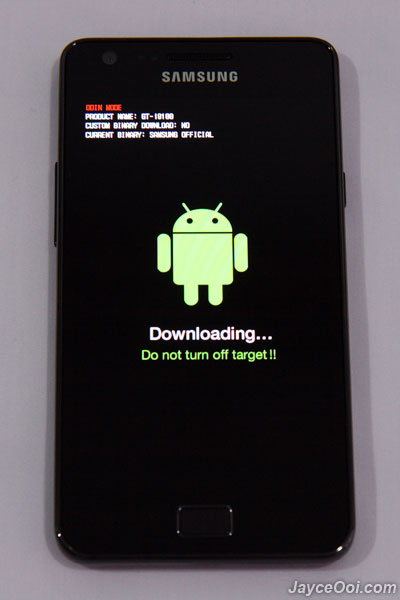
11) After that connect you device to your PC using USB cable.
12) Now run the application Odin 3 that we downloaded earlier as a device administrator.
Odin will automatically detect your device and will display "Added..!!".
If not check whether the USB cable is properly plugged.If your PC doesn't have USB drivers installed,you have to manually install the proper divers of your device.
13) Now click on PDA and go to the extracted location of your firmware file and select .md5.tar extension with file.

14) Do not change anything in the user interface like LED Control,Re-partitioning..etc.and only see whether Auto reboot and f.Reset Time are checked.
15) Now click on Start button.
06) Now Odin will flash the stock firmware to your smartphone.
Odin 3 will display RESET! on your desktop and your device will be automatically rebooted.
DO NOT UNPLUG THE DEVICE UNTIL ODIN DISPLAY "PASS" on your PC.
If it displayed PASS! you can unplug the USB cable.

But it displayed FAILED! you may have made a mistake somewhere.Make Sure you have download the correct firmware,Battery is still alive,USB cable was properly connected and flash the firmware again and you will be successful.
17) If you are stopped in the boot loop,turn off the device and reboot into stock recovery mode and do a data wipe and factory data reset.

18) After that you will be able to successfully boot your android device...!
19) Go to settings, General ,About Phone.Or again boot your device into Downloading mode.
And see details mentioned.

You will see that now your device is official Samsung device.
It will take sometime because the file is somewhat big.
09) Now extract the zip file into a folder.
Remember your device at least must have 50% of battery to avoid a blackout during flashing process.
If there are useful files in your device do a backup as this process will erase everything in your device.
11) After that connect you device to your PC using USB cable.
12) Now run the application Odin 3 that we downloaded earlier as a device administrator.
Odin will automatically detect your device and will display "Added..!!".
If not check whether the USB cable is properly plugged.If your PC doesn't have USB drivers installed,you have to manually install the proper divers of your device.
13) Now click on PDA and go to the extracted location of your firmware file and select .md5.tar extension with file.
14) Do not change anything in the user interface like LED Control,Re-partitioning..etc.and only see whether Auto reboot and f.Reset Time are checked.
15) Now click on Start button.
06) Now Odin will flash the stock firmware to your smartphone.
Odin 3 will display RESET! on your desktop and your device will be automatically rebooted.
DO NOT UNPLUG THE DEVICE UNTIL ODIN DISPLAY "PASS" on your PC.
If it displayed PASS! you can unplug the USB cable.
But it displayed FAILED! you may have made a mistake somewhere.Make Sure you have download the correct firmware,Battery is still alive,USB cable was properly connected and flash the firmware again and you will be successful.
17) If you are stopped in the boot loop,turn off the device and reboot into stock recovery mode and do a data wipe and factory data reset.
18) After that you will be able to successfully boot your android device...!
19) Go to settings, General ,About Phone.Or again boot your device into Downloading mode.
And see details mentioned.
You will see that now your device is official Samsung device.

No comments:
Post a Comment